You’re deep in a complex script — one that grew over months, or that you inherited from another developer — and you’ve just spotted a problem. The variable $contactSelect has been used throughout, but it should be $contactID to match the naming convention in the rest of your solution. It appears in dozens of steps, and it is also embedded deep inside several complex calculations. In FileMaker’s Script Workspace, that means scrolling through and changing each instance manually, one step at a time — and very possibly missing an instance or two. Or you could copy that script, run a single find-and-replace on the underlying code, and paste it back. Every instance updated. Five seconds.
That is what the FM Clipboard Tool – along with a little XML knowledge – enables. The FM Clipboard Tool is the key that gives you direct access to the code layer that has always been there, hidden under the UI surface of your FileMaker files.
Most FileMaker developers don’t think of FileMaker as a code-based environment. It’s a point-and-click workspace: scripts built step by step, fields defined through dialogs, layouts assembled by dragging objects around the screen. The UI is friendly, guided, and validates as we go. For most developers, most of the time, that’s all we need.
But it is important for us to remember that all of that is just FileMaker’s UI layer. Beneath that, FileMaker is still code. Under the UI layer, FileMaker represents its entire schema — every script, table, field, custom function, value list, layout object, theme — as a specialized form of XML. That format is called FMXML. And if you know how to access it, a whole new set of development tools opens up.
In this article…
- What FMXML actually is
- How FileMaker uses it under the hood
- The FM Clipboard Tool — a small utility that makes the FMXML layer visible and editable
- A round-trip workflow using a real example
- FMXML snippet code libraries
- When a dedicated text editor adds value
- A brief look at where AI fits into the picture
By the end, you’ll have a different mental model of your FileMaker files — and a concrete place to start.
What Is FMXML?
FMXML is FileMaker’s internal XML format for representing schema objects. Any element you can copy in FileMaker can be read as FMXML. This is the format FileMaker itself uses to transfer schema elements on the clipboard.
When you copy a script and paste it into another file, FMXML is what travels between them. FileMaker just handles it invisibly.
Every FMXML snippet is wrapped in a root element that looks like this:
<fmxmlsnippet type="FMObjectList">
    <!-- schema elements go here -->
</fmxmlsnippet>
Inside that wrapper, the content varies by element type. A complete script (with a single Set Variable step) looks like this:
<fmxmlsnippet type="FMObjectList"> <Script id="0" name="Initialize Record"> <Step enable="True" id="141" name="Set Variable"> <Name>$status</Name> <Value> <Calculation><![CDATA["Active"]]></Calculation> </Value> <Repetition> <Calculation><![CDATA[1]]></Calculation> </Repetition> </Step> </Script> </fmxmlsnippet>
And a simple text field definition looks like this:
<fmxmlsnippet type="FMObjectList">
    <Field id="0" dataType="Text" fieldType="Normal" name="Status">   <Storage autoIndex="True" index="Minimal" indexLanguage="English" global="False" maxRepetition="1"></Storage>
    </Field>
</fmxmlsnippet>
A few things are immediately apparent: the structure is regular and predictable; element types are identified by their root tag (<Script>, <Field>, <BaseTable>, <CustomFunction>, <Layout>, etc.); and calculations are wrapped in <![CDATA[…]]> blocks to preserve special characters.
I should point out that Claris does not publish a comprehensive FMXML specification. There is no official reference document that defines every attribute, tag, and valid value. (See the FMXML Developer Resource PDF – link below – as a good starting point.) The format is primarily learned by inspecting real clipboard output — copying something from FileMaker and looking at what comes out. That might sound daunting, but in practice it’s quite approachable. The structure is consistent, the patterns repeat, and a bit of exploration is enough to build a solid working model.
How FileMaker Actually Uses FMXML
When FileMaker puts copied schema on your clipboard, it’s not stored as plain text. The clipboard data is in a proprietary binary format that FileMaker uses internally, with each element type registered under a specific four-letter class code.
This binary wrapping is why you can’t paste copied schema into a text field and see the FMXML. The clipboard data is only meaningful when read through an interface that understands FileMaker’s format — normally, that is only within FileMaker’s UI, following expected copy and paste actions.
This also means that if you create or modify FMXML in a text editor and want to paste the result into FileMaker, you can’t just put it on the clipboard as plain text and then paste it as a set of script steps, for example. FileMaker won’t recognize it. You need to put it on the clipboard in the proper format, along with the correct class code for the element type you’re working with.
What the Clipboard Cannot Do
Leveraging the clipboard is powerful, but not every aspect of a FileMaker file can be copied and pasted.
Relationships are the most significant gap. FileMaker’s copy-paste mechanism doesn’t support relationship definitions — you can’t copy a relationship from the relationship graph and paste it into another file. Relationships have to be created manually, or through other methods outside the clipboard workflow.
Full-solution structure is also out of scope. The FMXML clipboard format works with discrete elements —scripts, fields, custom functions, layout objects. It doesn’t capture things like file references, accounts and privileges, or the overall organization of a solution. Think of it as a way to work with parts, not the whole.
For developers who need to go further — particularly around relationships and comprehensive multi-element schema deployment — there are programmatic approaches that complement the clipboard workflow. We’ll touch on those briefly at the end.
FileMaker’s Two XML Formats
It’s worth knowing that FileMaker actually has two distinct XML formats — and they’re easy to confuse.
The first is the clipboard snippet format described throughout this article: FMXML or <fmxmlsnippet> XML used for copying and pasting discrete schema elements. This is what the FM Clipboard Tool works with.
The second is the format produced by FileMaker’s Save a Copy as XML script step (sometimes called FMSaveAsXML or simply SaXML in developer tooling and community discussions). This is a full-solution export format — it represents an entire FileMaker file as a structured XML document rather than individual copyable elements. The two formats are related in spirit but structurally different and not interchangeable.
The clipboard format is what concerns us here. The Save a Copy as XML format is a deeper topic — one that opens up its own set of possibilities for FileMaker development, and one we will return to in a future article.
The Key: FM Clipboard Tool
This is where the FM Clipboard Tool comes in. FM Clipboard Tool is a small FileMaker utility file built to make FMXML visible and editable. It uses two functions from the free BaseElements plugin to read from and write to FileMaker’s clipboard in the correct binary format:
- BE_ClipboardGetText — reads the clipboard contents for a given format code
- BE_ClipboardSetText — writes data back to the clipboard under the correct format code
BaseElements is a widely-used, open-source FileMaker plugin. It’s available for free, runs on both Mac and Windows, and is already installed in many FileMaker development environments. The clipboard functions are just two of the many utilities it provides, but for this purpose they’re the critical ones.
Requirements: FM Clipboard Tool is available as a free download — see Resources below. It requires FileMaker Pro 18 or later, automatically installs the necessary BaseElements plugin, and works on both Mac and Windows.
The FM Clipboard Tool’s interface is built around three actions:
Paste Schema/XML. Copy any schema element in FileMaker — a script, a field, a group of layout objects, a custom function — and click Paste Schema/XML. The tool reads the binary clipboard data and places the raw FMXML into its text field. The code that FileMaker normally hides on the clipboard is now suddenly available to you, readable and editable.
Copy Text. If you want to work with the FMXML in an external text editor, click Copy Text. This copies the FMXML as plain text to the clipboard, ready to paste into VS Code, BBEdit, or wherever you’re doing your editing.
Copy XML for FileMaker. After you’ve made your changes (and, if modified in an external editor, pasted back into the FM Clipboard Tool), click the Copy XML for FileMaker button. The tool writes the FMXML back to the clipboard in the correct binary format — the same format FileMaker expects from a native copy operation. Switch to your target file and paste.
One more thing worth noting: the FM Clipboard Tool is an open FileMaker file. You can examine the scripts, see exactly how the BaseElements functions are being called, review the code formats table, and modify the tool to fit your own workflow. It’s a useful learning resource and a good foundation if you want to build something more customized.
The Developer Workflow: A Round-Trip Walkthrough
Here’s how the workflow looks in practice, using the variable rename example from the opening.
Step 1: Copy from FileMaker. Copy the script (or script steps, fields, tables, custom functions, etc.) that you want to modify. Here we see the script with the variables we want to modify in the Script Workspace. 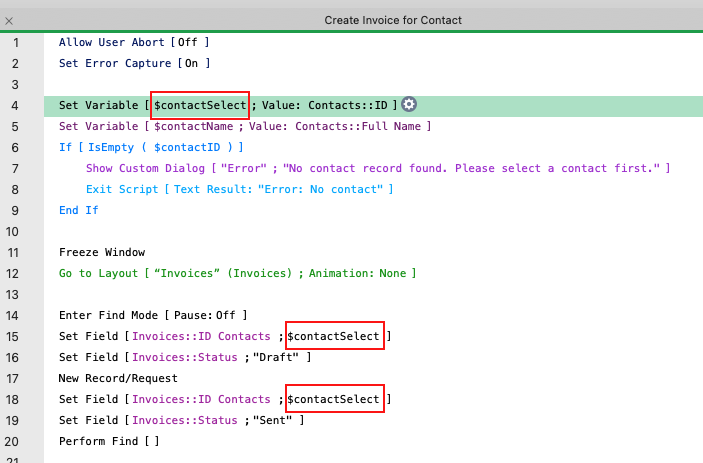
The script in FileMaker before editing — $contactSelect references highlighted
Step 2: ‘Paste’ into FM Clipboard Tool. Switch to FM Clipboard Tool and click Paste Schema/XML. The tool reads the FMXML from the clipboard and displays it in the tool’s text field — no manual paste required. You’re looking at the actual code for the entire script — every step, every variable reference, every calculation.

FM Clipboard Tool — primary edit layout, with the script’s FMXML in the editor pane
Step 3: Make your changes. The FMXML is now in FM Clipboard Tool’s text field, and you can edit it directly. For a simple operation like this one, that’s often all you need: run a Find and Replace right in the text field. Every instance of $contactSelect updated to $contactID at once — no external tools required.
For more complex work — reviewing a long script’s structure, multiple simultaneous replacements, or editing with syntax highlighting and XML formatting — clicking Copy Text and moving to a dedicated text editor adds real value. Paste the FMXML into Visual Studio Code, BBEdit, or your editor of choice, make your changes, then paste the modified FMXML back into FM Clipboard Tool’s text field. More on this below.
Step 4: Copy to clipboard. Click Copy XML for FileMaker. The tool copies the FMXML to the clipboard in the correct binary format.
Step 5: Paste into FileMaker. Switch back to the Script Workspace, paste, and confirm. The updated script is there, with every variable reference corrected. 
The same script in FileMaker after the round-trip — $contactID now in place of $contactSelect
That’s the complete round-trip!
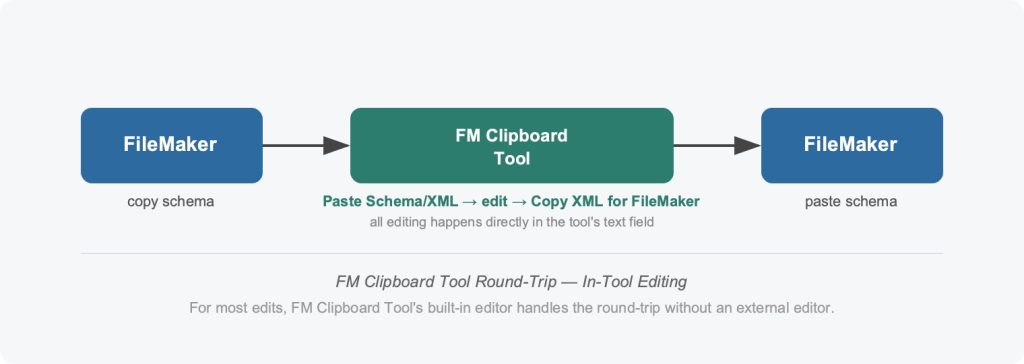
FM Clipboard Tool round-trip — in-tool editing
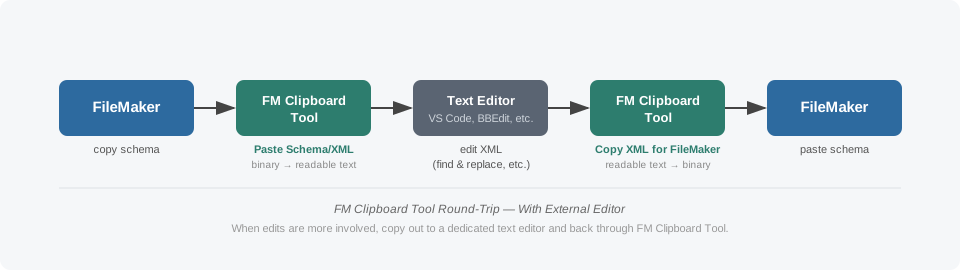
FM Clipboard Tool round-trip — with external editor
While the variable rename example is easy to follow, the same workflow applies to a wide range of situations:
- Duplicate and adapt. Copy a structured set of script steps, modify the field names or variable names in the XML, and paste multiple variations quickly — useful when building repetitive logic for similar fields.
- Complex layout structures. How many times have you built a pixel-perfect layout with dozens of layered fields and other layout objects, many of them grouped as buttons – and then you discover you have to change one field within every group? Instead of going through the layout and one at a time ungrouping objects, carefully selecting the right field in the stack, making the change, regrouping and resetting the button script call, you can copy everything, identify the change in the FMXML, run a comprehensive replace, and then paste it all back.
- Inspect unfamiliar code. Copy a script step or layout object from a file you didn’t build, paste it into FM Clipboard Tool, and read the FMXML to understand exactly how it works.
The underlying principle is this: any change that would require repetitive manual interaction in FileMaker’s UI, but can be expressed as a text transformation in the underlying XML, becomes a fast batch operation.
Any change that would require repetitive manual interaction in FileMaker’s UI, but can be expressed as a text transformation in the underlying XML, becomes a fast batch operation.
Building an FMXML Snippet Library
Once you start working with FMXML regularly, it’s natural to start saving the pieces you reuse. A snippet library is exactly what it sounds like: a collection of FMXML for commonly-used schema elements.
FM Clipboard Tool can also act as a snippet library. Each code snippet you load into the editor can be saved with a name and description, then recalled later from the Snippet List. For most everyday snippet storage, this is all you need.
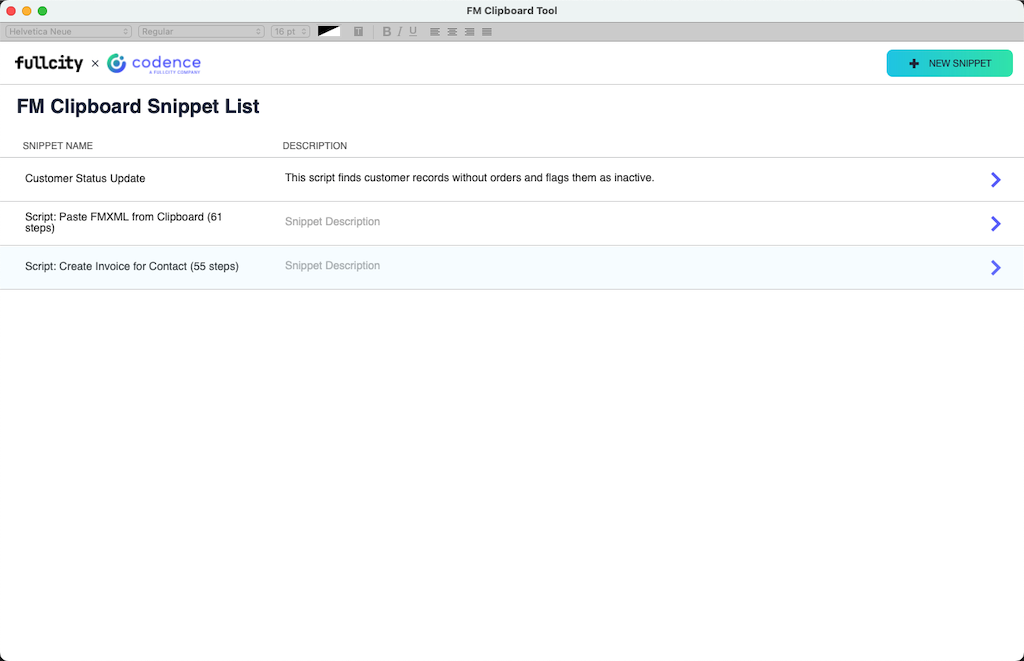 FM Clipboard Tool’s built-in Snippet List view
Version control with Git. Because FMXML is plain text, it’s also easily compatible with Git environments. A snippet library on GitHub can be shared across a development team, versioned over time, and searched quickly. It becomes a living codebase for your FileMaker development — something many FileMaker shops have never had before.
Text Editors and FMXML
For simple changes, FM Clipboard Tool’s text field is all you need. But when the work is more complex — multiple simultaneous replacements, reviewing a long script’s structure, or managing a growing library of FMXML files — a dedicated text editor pays off.
One of the most popular text-based coding tools is Visual Studio Code, but others exist, as well. Beyond Find and Replace and multi-cursor editing, through free extensions VS Code has strong XML support, adding schema-aware formatting, syntax highlighting, collapsible code sections, and document tree navigation. It pairs naturally with the round-trip workflow described above. It is also free.

VS Code Find and Replace — $contactSelect matched in 3 locations, $contactID queued as the replacement
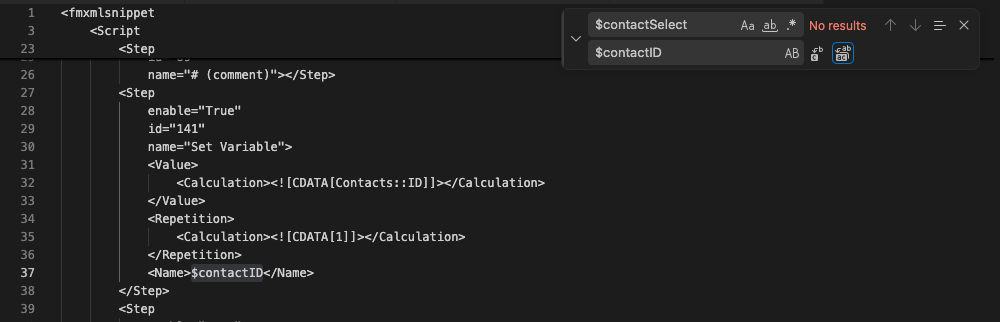
VS Code after the replace — $contactID in place, no remaining matches
Getting Started
FMXML is already underlying every FileMaker file you work with through the clipboard. The FM Clipboard Tool makes it accessible.
If you’ve read this far and want to try it: start small. Copy a script from a test file, click Paste Schema/XML in FM Clipboard Tool, and look at what you get. Read through the structure — you’ll recognize it immediately. Try a find-and-replace on a small element, like a variable name, right in the text field. Paste it back into your file. See it work.
A word of caution: I should emphasize the need to be careful with any changes you make in the FMXML. By altering the code this way, you are bypassing much of FileMaker’s error trapping UI, which we normally take for granted. Incorrectly formed code may not get flagged by FileMaker. Test every change you make carefully before deploying in a real world environment.
Returning to that script with dozens of $contactSelect references… The find-and-replace itself takes a couple of seconds. The full round-trip — copy the script, swap the variable name, paste back — takes a few minutes at most. But that’s almost beside the point. Once you can see the code underneath your FileMaker files, you’ll find yourself looking at every tedious, repetitive task a little differently.
The code layer has always been there. Now you know how to reach it.
FMXML and AI: A Brief Look Forward
One more dimension worth mentioning, something I will be exploring in upcoming articles: FMXML is one of the key pathways that makes direct AI development in FileMaker possible. Not just AI-built frontend solutions, but actually using AI to create FileMaker schema.
AI language coding models typically generate text. They can also be trained — through structured prompting and reference libraries — to generate valid FMXML. This means that the workflow of designing FileMaker’s FMXML and delivering it through the clipboard is something an AI can do on your behalf. FMXML makes that possible.
If you understand what FMXML is, how the clipboard format works, and how tools like the FM Clipboard Tool and BaseElements bridge the gap between text and FileMaker, you have the mental model you need to take advantage of AI-assisted FileMaker development as those tools mature.
With that foundation, in the next few articles we will begin to explore some powerful ways to use AI to directly build FileMaker schema – and then moving beyond the limitations of clipboard snippet code to create multiple schema elements simultaneously, including relationships and even layouts!
Resources
- FM Clipboard Tool — Please submit the form below to get the file.
- BaseElements Plugin — baseelements.com — Free, open-source; the engine behind the FM Clipboard Tool’s clipboard access (included with FM Clipboard Tool)
- FMXML Developer Resource PDF — Free download. Because Claris has not released official FMXML documentation, this reference guide will get you started.
- Visual Studio Code — code.visualstudio.com — Free text editor with strong XML support via free extensions

Built with you in mind
Speak to one of our expert consultants about making sense of your data today. During
this free consultation, we'll address your questions, learn more about your business, and
make some immediate recommendations.